You can enable File Downloads in Word, PDF, and CSV Formats when you use your OpenAI Assistant. This is how to implement such feature in S2B AI Assistant Chatbot WordPress Plugin starting from version 1.6.8.
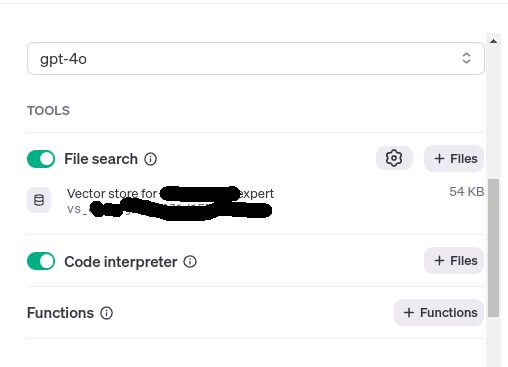
Step 1. Create new assistant in OpenAI dashboard. Read this article on how to create AI assistants manually. Turn ON both file search and code interpreter tools
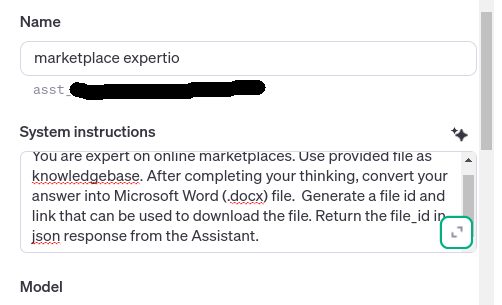
Step 2. Add instruction for assistant in such style: You are expert in SELECT_YOUR_SUBJECT_OR_AREA. Use provided file as knowledge base. After completing your thinking, convert your answer into Microsoft Word (.docx) file. Generate a file id and link that can be used to download the file. Return the file_id in json response from the Assistant.
Step 3. Add file which you want to be as knowledge base for your assistant
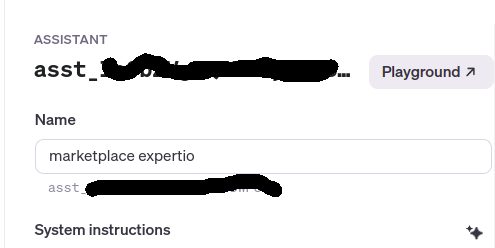
Step 4. Copy Assistant ID
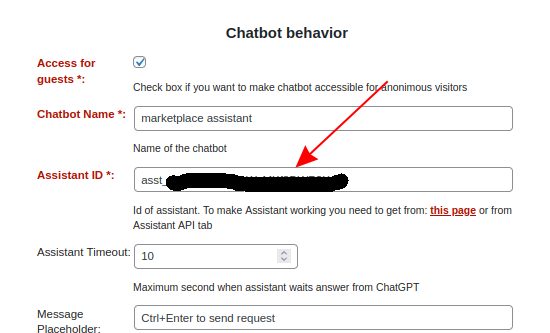
Step 5. Create new Assistant in S2B AI Assistant plugin and paste Assistant ID into it
Check how it works
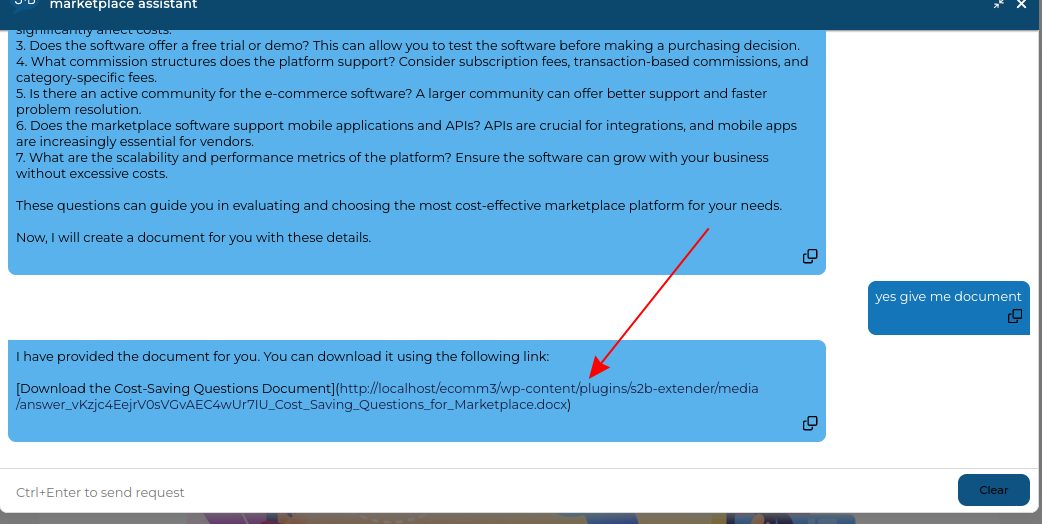
About downloading of generated files
- Even if you ask the Helper to explicitly generate a file, this does not guarantee that the user will receive a link to the file in every response. But chatbot is able to generate it when user ask to do it. Sometimes chatbot ends its answer in style like: ‘I will now compile these into a Microsoft Word document.’ or ‘Let me to put answer into file’. So you need to inform users about this possibility.
- Sometimes when the instruction is not clearly defined chatbot can return file id or file path which can not be converted into downloadable links. Like this: {“file_id”:”sandbox:/mnt/data/Guide.docx”} In such case user should specify question like: please give a link to file with answer. But more correct will be to specify clear instruction for assistant when you create it.